





Digital Workflow Disruptions: Quick Fixes for CAD/CAM
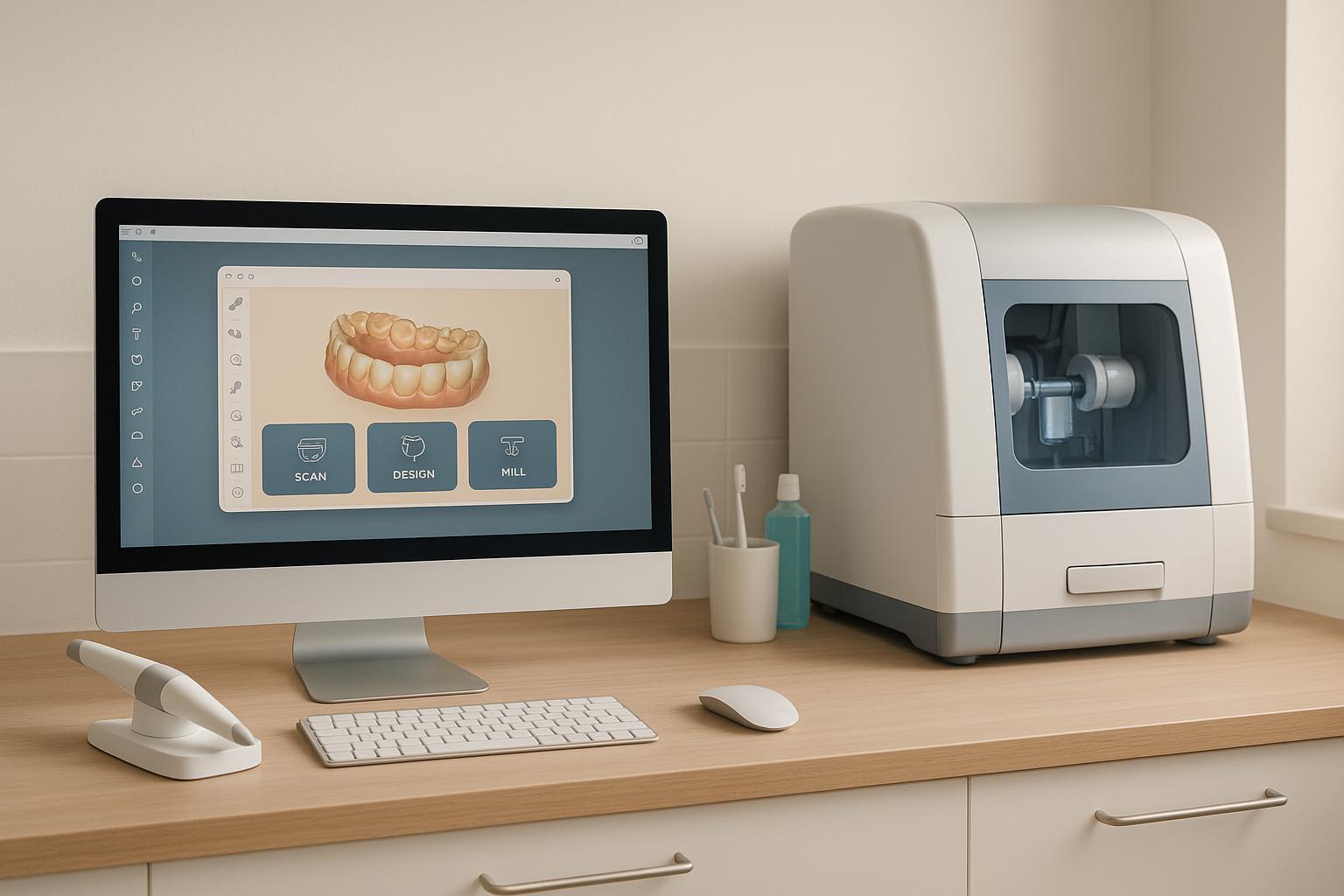
When CAD/CAM systems fail in dental practices, the impact is immediate: delayed treatments, unhappy patients, and financial losses. These systems, crucial for designing and manufacturing dental restorations, rely on seamless integration between scanners, software, and milling machines. A single issue – like a software crash, hardware malfunction, or network problem – can halt operations entirely.
Here’s how to address the most common problems:
- Software Issues: Restart programs, clear cache, and update or reinstall software to resolve crashes or file compatibility problems.
- Hardware Failures: Clean and calibrate scanners, clear milling unit blockages, and replace worn tools to restore precision.
- Connection Problems: Check cables, reset routers, and resolve IP conflicts to fix data transfer issues.
Regular maintenance – like updating software, calibrating equipment, and inspecting materials – prevents disruptions and ensures smooth workflows. By staying proactive, practices can reduce downtime, maintain efficiency, and deliver timely care to patients.
CEREC Primescan red light: battery removal and re-seating
Common CAD/CAM Workflow Problems
Spotting and addressing problems that disrupt CAD/CAM workflows – whether they stem from software, hardware, or network issues – is crucial for keeping operations running smoothly. Each type of issue requires a specific solution to minimise downtime and get things back on track.
Software Problems
Software glitches are a common headache in digital dental workflows. Issues like system crashes, freezing programs, or file format mismatches between devices or software can bring everything to a standstill[2][4][3]. For instance, if a design created in one program can’t be opened in another, the entire process may grind to a halt. These problems often arise from incorrect file uploads, mislabelled scans, or unsaved patient data, leading to abrupt interruptions and even data loss[7].
While software problems can derail workflows, hardware breakdowns can be just as disruptive.
Hardware Breakdowns
Hardware failures – such as issues with milling units, scanner calibration, or material handling – are another major source of workflow interruptions[2][3]. Quick detection and repair of these problems are essential to avoid prolonged delays.
Take milling unit failures, for example. These can result in incomplete milling, rough finishes, or startup errors caused by worn tools, jams, or mechanical malfunctions. Scanner calibration errors, on the other hand, can produce inaccurate digital impressions right at the outset, leading to distorted scans, missing data, or inconsistent measurements. Material handling problems, such as damaged or improperly sized ceramic or composite blocks, often go unnoticed until milling starts, wasting both time and resources.
Network and Connection Issues
Network-related problems, poor device integration, and limited bandwidth can create significant bottlenecks in data transfer, often requiring re-scans or manual fixes[2][4][8]. Modern workflows depend heavily on the seamless exchange of data across multiple devices and platforms.
For example, if a scanner can’t communicate properly with design software, practitioners might need to re-scan patients, extending appointment times and causing discomfort. Similarly, unreliable integration between practice management systems and labs can lead to file transfer failures, forcing manual workarounds. Another common issue arises from mixing different brands or types of software and hardware, which often struggle to work together due to compatibility challenges. These connectivity issues not only delay treatments but also disrupt daily schedules, creating unnecessary stress for practitioners and patients alike.
Step-by-Step Solutions for Common Problems
Most CAD/CAM disruptions can be resolved efficiently with a structured approach to troubleshooting.
Fixing Software Errors
Software crashes and compatibility problems can cause serious delays, but they’re usually fixable with a few key steps. One common issue is file format incompatibility, especially when sharing data with external labs that use different systems [2]. To tackle software errors, start by restarting the program and clearing temporary cache files. If you encounter a "not responding" message, resist the urge to force-close the program. Instead, wait 30–60 seconds to allow the software’s automatic recovery feature to kick in. Many CAD tools auto-save progress every 5 to 10 minutes, which can save your work.
For file compatibility issues, convert designs into widely accepted formats like STL, PLY, or DICOM. Most CAD programs support exporting in multiple formats, and middleware tools can help bridge compatibility gaps [2]. If the software keeps crashing, check for updates – manufacturers often release patches to fix bugs. If problems persist, reinstalling the software might resolve any corrupted files. When dealing with data corruption, try restoring from backups or using specialised recovery tools.
Once software issues are addressed, it’s time to focus on hardware to ensure everything runs smoothly.
Repairing Hardware Issues
Hardware problems can grind operations to a halt, so it’s important to act quickly. If scanner output looks distorted or inaccurate, start by cleaning the scanner tip thoroughly. Dust or residue can interfere with the optical sensors. Use the calibration target provided by the manufacturer to recalibrate the scanner. If calibration fails, check for software updates that might address compatibility issues.
Milling units can also face problems, such as blockages. To fix this, power down the unit and wait for all moving parts to stop. Open the chamber and inspect the cutting area, spindle, and material blank holder. Clear out any debris using compressed air or a soft brush. If a material blank is stuck, release the clamping mechanism carefully to avoid damaging the feed system.
Worn milling burs can compromise precision, so replace them immediately if they show signs of wear or breakage. Fragments from broken burs can cause further blockages, so ensure the cutting chamber is clear before running a test milling cycle without material to confirm everything is functioning correctly.
| Hardware Issue | Immediate Action | Follow-up Steps |
|---|---|---|
| Scanner calibration error | Clean scanner tip and use calibration target | Check for updates and verify accuracy |
| Milling unit blockage | Power down and clear debris with compressed air | Inspect burs and run a test cycle |
| Material feed problems | Release clamping mechanism and remove blank | Verify material specs and feed rates |
Finally, ensure network connections are stable to avoid further disruptions.
Solving Connection Problems
Connectivity issues can interfere with data transfer between scanners, design software, and milling machines. Start by checking physical connections – inspect Ethernet cables, USB links, and wireless signal strength. Restart your network routers and switches, as this can often resolve minor glitches.
IP address conflicts are another common issue. Assigning static IP addresses to your CAD/CAM devices can eliminate these conflicts. For wireless setups, confirm that all devices are connected to the same network and that the correct authentication credentials are in place.
Sometimes, firewall settings block communication between systems. Review your security software and create exceptions for CAD/CAM applications. Test data transfers with small files first to ensure everything is working properly.
Cloud-based systems offer a reliable alternative for maintaining workflow continuity when local networks fail. These platforms enable real-time sharing of patient data and treatment plans [8]. Additionally, digital tools with case tracking and automated updates can alert you to data transfer failures, allowing you to address issues before they escalate [4].
sbb-itb-2be92ed
Preventing Future Workflow Disruptions
Keeping your CAD/CAM systems running smoothly requires a mix of regular maintenance and preventive measures. While quick fixes address immediate issues, taking proactive steps ensures your workflows remain uninterrupted over the long term.
Regular Software Maintenance
Staying on top of software updates is a straightforward yet critical step. Updates often include bug fixes, security patches, and performance tweaks that help prevent crashes or compatibility problems [2]. Some practices delay updates out of fear they’ll disrupt operations, but outdated software is much more likely to cause issues.
To ensure smooth adoption of updates, regular staff training is essential. This isn’t just about introducing new features – it’s about helping your team understand how updates impact daily processes. Without proper training, staff errors can escalate into larger problems [2].
Set up a routine for software maintenance that includes scheduled checks and backup verifications. Workflow management systems, for example, rely on consistent monitoring to ensure case tracking and automated notifications function as intended [4]. Dedicate time each week to confirm that backups are operational and that all devices are properly connected.
Documenting software versions and calibration checks is another smart move. These records make troubleshooting easier and help with training new team members, providing a clear reference point when issues arise.
Equipment Calibration and Cleaning
Maintaining your physical equipment is just as important as keeping software up to date. For instance, intraoral scanners need regular calibration to capture accurate 3D images of patients’ mouths. Manufacturers typically provide calibration schedules, but high-volume practices may need to adjust these to match their workload [8].
Cleaning scanner tips and optical components is equally crucial. Even tiny amounts of debris can distort scans, affecting restoration quality. Always use approved cleaning solutions and follow the manufacturer’s guidelines to avoid damaging sensitive parts.
Milling units also require periodic calibration to ensure precise restorations [5]. Weekly accuracy checks are a good rule of thumb for practices handling multiple cases daily. During these checks, pay close attention to spindle alignment, tool holders, and material clamps.
Standardising maintenance routines can help reduce errors and maintain consistent quality [2]. Create detailed checklists for daily, weekly, and monthly tasks. For example:
- Daily tasks: Clean scanner tips and check material levels.
- Weekly tasks: Verify calibration and inspect equipment for wear.
- Monthly tasks: Deep-clean milling chambers and perform more thorough equipment checks.
When investing in new technology, look for equipment designed with scalability and compatibility in mind. This makes maintenance simpler and provides flexibility when troubleshooting.
Material and Tool Inspection
Consumables like milling burs and materials need regular checks to avoid workflow disruptions. Worn milling burs, for example, can lead to inaccurate restorations and even damage your equipment. Establish a rotation system, marking burs with usage dates and tracking their performance over time.
Storage conditions for materials like ceramic blocks and resin are equally important. Improper storage – such as exposure to moisture, temperature changes, or direct sunlight – can degrade these materials. Use climate-controlled storage and a first-in, first-out system to ensure older materials are used first.
Digital assets also need attention. Misfiled or corrupted data can disrupt workflows just as much as physical issues [7]. Implement clear naming conventions, backup protocols, and staff training to maintain data integrity.
To streamline quality control, include steps like visual inspections of materials, checking batch numbers, and tracking tool replacements. If you work with external suppliers or labs, service agreements should clearly define material quality standards and replacement policies [4].
Effective inventory management is another key element. Set up alerts for low stock levels and partner with reliable suppliers for quick replenishments. Keeping detailed records of material performance can also help identify storage or handling issues over time.
| Maintenance Task | Frequency | Key Checkpoints |
|---|---|---|
| Software updates | As released | Bug fixes, compatibility, backup checks |
| Scanner calibration | Weekly (high volume) | Accuracy targets, tip cleanliness, alignment |
| Material inspection | Before each use | Expiration dates, storage conditions, batch integrity |
Maintaining Reliable CAD/CAM Workflows
Reliable CAD/CAM workflows are essential for ensuring smooth daily operations and consistently delivering high-quality restorations. These workflows not only boost efficiency but also play a key role in enhancing patient satisfaction.
Digital CAD/CAM systems are designed to minimise errors and improve the precision of restoration fit [1]. This results in less time spent in the chair and fewer follow-up adjustment appointments, creating a more seamless experience for both patients and practitioners.
To keep these benefits intact, it’s crucial to build on existing maintenance protocols and maintain clear communication standards. For instance, digital workflows enable same-day restorations, reducing the number of appointments and improving patient satisfaction [1][6]. However, achieving this level of efficiency depends heavily on how well your systems integrate. Practices that invest in equipment with open interfaces and standardised data formats find it easier to adapt as technology advances [2].
Regular team training is another cornerstone of reliability. Practices that prioritise ongoing training in CAD/CAM technologies report fewer disruptions and better in-house problem-solving capabilities. This not only reduces reliance on external support but also aligns with preventive maintenance strategies, ensuring smooth operations even during busy periods [5].
Clear and standardised communication is equally important. By complementing existing troubleshooting protocols with structured handover processes and regular feedback sessions, practices can address recurring issues before they become major problems. Digital workflow management systems, which offer tools like real-time case tracking and automated reminders, further enhance communication and minimise errors [4].
For Australian practices, tapping into local support networks can make a big difference when technical issues arise. Strong relationships with equipment suppliers and service providers ensure quicker access to replacement parts, loan equipment, and expert advice when needed most.
Reliable CAD/CAM workflows not only increase efficiency and capacity but also reduce remakes and elevate patient care. When your digital systems function consistently, you can focus on what truly matters: delivering exceptional care without the distraction of technical hiccups.
FAQs
What are the common causes of CAD/CAM system issues in dental practices, and how can they be resolved quickly?
In dental practices, CAD/CAM systems can occasionally face challenges like software glitches, hardware malfunctions, or user errors. These hiccups can disrupt workflows and delay patient care, but the good news is that many of these problems can be tackled effectively with the right steps.
When dealing with software issues, start by checking if your system is up to date with the latest patches and updates. Sometimes, a simple restart of the software or device can clear up minor glitches. For hardware troubles, inspect for things like loose connections, overheating, or worn-out components. If something seems off, reaching out to your equipment provider can often point you in the right direction.
User errors, on the other hand, can usually be reduced through consistent staff training and having clear, easy-to-follow procedural guidelines in place.
If these solutions don’t resolve the problem, it’s a good idea to contact your CAD/CAM system’s support team or bring in a qualified technician. Acting quickly can help restore functionality and keep downtime to a minimum.
What steps can I take to prevent disruptions in CAD/CAM workflows?
Keeping your CAD/CAM workflows running smoothly requires regular upkeep and a few smart precautions. First, make sure both your software and hardware are always updated to the latest versions. Updates often come with important fixes and enhancements that can improve performance. Additionally, take the time to regularly inspect and calibrate your equipment. This helps ensure precision and reduces the risk of technical glitches.
It’s also wise to keep an eye out for signs of wear, like slower processing speeds or inconsistent outputs, and tackle these problems as soon as they arise. Setting up a routine maintenance schedule can go a long way in reducing unexpected hiccups. Plus, training your team on proper practices ensures everyone knows how to handle the tools effectively, keeping your workflow efficient and productive.
How can I ensure smooth data transfer and compatibility between CAD/CAM devices and software?
To ensure smooth integration and reliable data transfer between CAD/CAM devices and software, start by using systems and formats that work well together. Most CAD/CAM platforms support standard file types like STL or OBJ, which help ensure consistency across different devices. Make sure your software and hardware are always updated to the latest versions, as updates often address compatibility issues and improve performance.
Proper configuration of your devices is equally important. Test your workflow thoroughly before applying it to critical tasks to catch any potential issues early. If problems persist, check the user manuals or reach out to the manufacturer’s support team for guidance. Regular upkeep, including maintenance and calibration of your CAD/CAM devices, can go a long way in minimising disruptions and keeping your digital workflow running smoothly.
Related Blog Posts
- Wear-Resistant Materials in Dental Restorations
- CAD/CAM vs. Traditional Restorations: Key Differences
- Reducing Dental Waste: Key Solutions
- CAD/CAM in Dentistry: Cost vs Value
Important Notice: Any surgical or invasive procedure carries risks. Before proceeding, you should seek a second opinion from an appropriately qualified health practitioner.
Individual results may vary. The information provided in this article is for educational purposes only and does not constitute medical advice.
Checkout Related Blogs



Get in touch with us
For more information, call us now to start feeling better. Or fill the form below to make appointment
The Latest News from Complete Smiles
How to Clean Clear Plastic Retainers
Checklist for Choosing Wearable Dental Devices
Checklist for Choosing Cloud AI Platforms in Dentistry

Complete Smiles Bella VistaAccepts All Major Health Funds, Including