




Troubleshooting CAD/CAM Errors: Guide

CAD/CAM systems are essential in modern dental practices for designing and manufacturing restorations like crowns and veneers. However, errors in these systems can disrupt workflows, delay patient care, and force reliance on slower methods. Common issues include software crashes, hardware malfunctions, material mismatches, and connectivity problems.
To address these challenges, start with basics like rebooting, checking physical connections, and ensuring software is up-to-date. Error codes and logs are critical for diagnosing problems, while manufacturer resources and local support can provide detailed solutions. Regular maintenance – cleaning, calibration, and updates – reduces downtime and extends equipment lifespan. For persistent issues, professional help, backed by thorough documentation, ensures faster resolutions.
Key Takeaways:
- Common Issues: Software errors, hardware failures, material mismatches, connectivity issues.
- Basic Fixes: Reboot systems, check cables, update software.
- Maintenance Tips: Daily cleaning, weekly calibration, monthly updates.
- When to Seek Help: Persistent issues or hardware failures.
This guide outlines practical steps to keep your CAD/CAM system running smoothly, ensuring efficient operations and better patient outcomes.
Mastering Precision: CEREC Software 5 Calibration with Primescan
Common CAD/CAM Error Codes Explained
Decoding CAD/CAM error codes is a crucial step in quickly identifying and addressing system issues. These codes are like a diagnostic language, pointing out whether the problem lies with software, hardware, materials, or connectivity. Knowing how to interpret them is essential for keeping your system running smoothly, as we’ll discuss further in this guide.
CAD/CAM Error Categories
CAD/CAM systems typically generate four types of error codes, each linked to a specific problem area. Here’s a closer look at what they mean:
Software errors often stem from crashes, compatibility issues, or updates gone wrong. These errors might show up as frozen screens, unexpected shutdowns, or tools that stop functioning properly.
Hardware errors point to physical issues with your equipment. For example, a scanner might produce distorted images due to mis-calibration, or a milling unit might jam because of worn-out components.
Material handling errors occur when there’s an issue with the blanks or other materials in use. Take vhf DentalCAM systems, for instance – they can detect when an incorrect abutment blank is loaded, triggering a material error because the blank doesn’t match the CAD application’s expectations [3].
Connectivity errors are especially challenging in setups where multiple devices – scanners, software, and milling machines – need to work together. These errors are caused by network disruptions, IP address conflicts, or mismatched communication protocols.
| Error Category | Common Causes | Resolutions | Example System |
|---|---|---|---|
| Software | Crashes, compatibility, updates | Restart, update, reinstall, clear cache | vhf DentalCAM, CEREC |
| Hardware | Scanner mis-calibration, milling jams | Calibrate, clean, replace worn parts | Dentsply Sirona |
| Material Handling | Incorrect blanks, low supply | Use correct blanks, reload materials | vhf DentalCAM |
| Connectivity | Network issues, protocol mismatch | Check cables, IPs, reboot, reconfigure protocols | Multi-unit CAD/CAM setups |
Finding and Reading Error Logs
Error logs are an essential tool for troubleshooting CAD/CAM systems. Most platforms display error messages prominently during use, but digging into the logs often provides deeper insights.
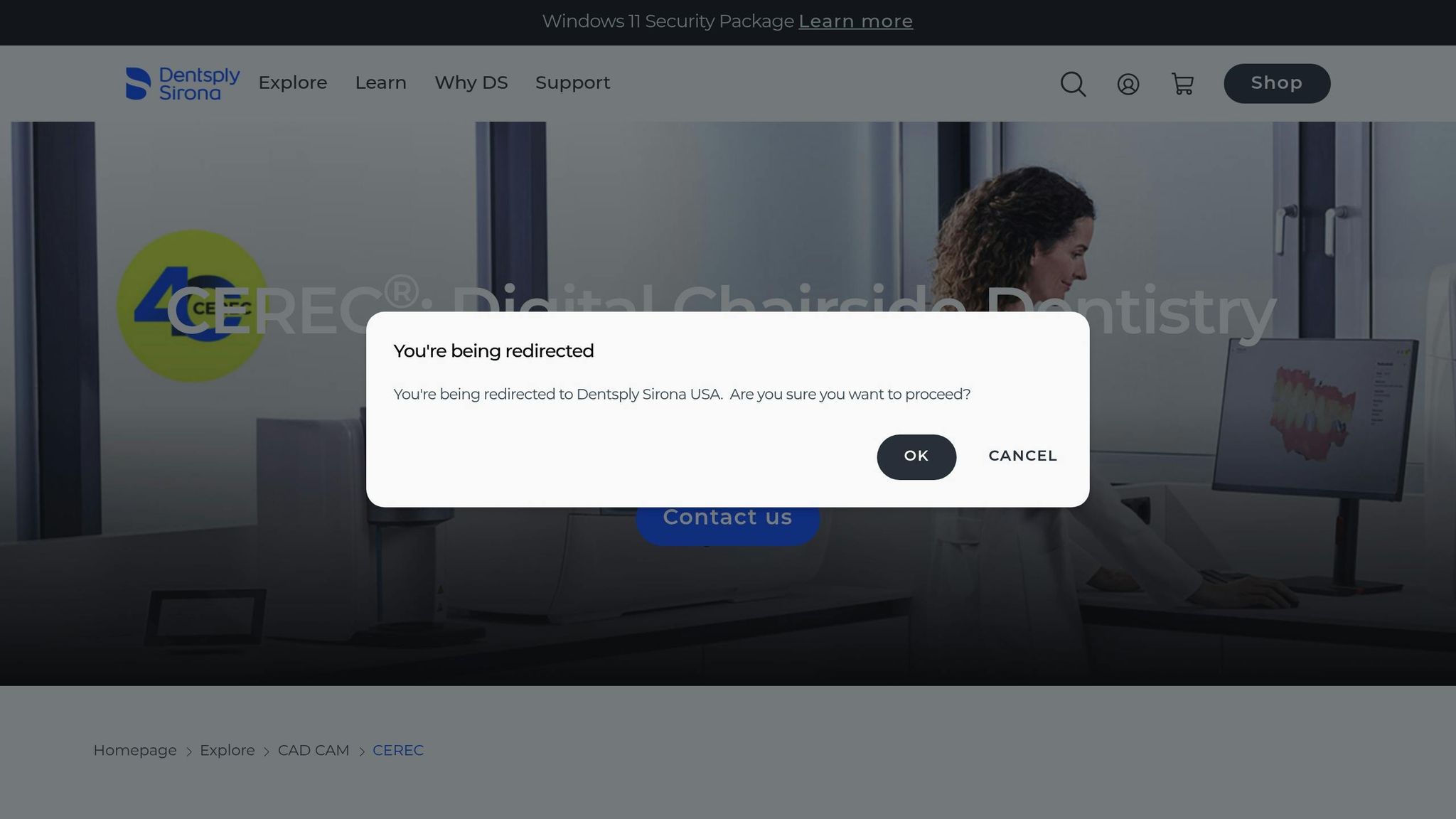
On Dentsply Sirona CEREC systems, error messages typically pop up directly on the interface when something goes wrong. For more detailed diagnostics, you can access logs through the "Configuration" or "Devices" tabs, which display device statuses and error notifications [2].
VHF DentalCAM users can find error logs in the software’s diagnostic or maintenance menu, accessible from the main dashboard or settings panel [3]. These logs are also stored on your computer’s hard drive, creating a record of issues that you can review later.
Error logs include timestamps and additional context, which are invaluable for spotting patterns. For instance, if a scanner calibration error occurs at the same time every day, the timestamp might reveal that it coincides with your network’s scheduled backup routine.
After a Windows update, CAD/CAM software may require reinstallation or administrator permissions to function correctly. These issues usually show up in the logs first [3]. Regularly reviewing and clearing error logs can help you catch recurring problems before they disrupt your workflow.
Next, we’ll look at how to use manufacturer resources to decode and resolve these error codes.
Using Manufacturer Resources for Error Codes
When it comes to understanding error codes, manufacturer documentation is your go-to resource. User manuals, online support pages, and troubleshooting guides provide detailed explanations of error codes, their causes, and recommended fixes [4][2].
For example, Dentsply Sirona offers an online troubleshooting section with step-by-step instructions for common issues [2]. When an error pops up, cross-check it with these resources, keeping in mind the context – what task you were performing, when the error occurred, and any external factors that might be relevant.
Australian practices, such as Complete Smiles Bella Vista, can benefit from local distributors and technical support teams. These regional resources often provide faster and more tailored assistance compared to global support channels. It’s also important to ensure that your software and hardware comply with local regulations, like those set by the Therapeutic Goods Administration (TGA).
Always download updates or patches from official, region-specific sources to avoid compatibility issues. Using incorrect materials or improperly loaded blanks can lead to specific material handling errors, which might disrupt milling processes or cause restoration failures [3][5]. The key is to match the exact error code with the manufacturer’s guidance, as similar codes can mean different things depending on the system you’re using.
Step-by-Step CAD/CAM Error Resolution
When CAD/CAM errors occur, following a structured approach can save time and prevent further complications. The best way to tackle these issues is by addressing the most likely causes first, then moving on to more complex solutions. This method helps pinpoint whether the problem lies in software glitches, hardware failures, or connectivity issues. Using error codes as a starting point, you can systematically address software, hardware, and connection-related problems.
Software Problem Solutions
Software crashes and freezing issues are some of the most frustrating challenges with CAD/CAM systems, but they’re often manageable with a clear plan. Addressing these issues promptly is crucial to avoid losing unsaved work or corrupting project files.
If your CAD/CAM software becomes unresponsive, start by force-closing the program using Ctrl+Shift+Esc and perform a controlled restart. This helps minimise data loss and ensures a clean reboot.
To recover lost work, check for automatic backup files. Most CAD/CAM programs save temporary versions of your projects at regular intervals. Look for files with extensions like .bak, .tmp, or .auto in your project folder – these can often restore hours of work.
Free up memory and disk space by closing unnecessary programs. This can significantly reduce the chances of software errors.
If the software stops working after a system update, try running it as an administrator. Right-click the program icon and select "Run as administrator" – this often resolves permission-related issues. For persistent problems, uninstall and reinstall the software, ensuring you download the latest version compatible with your operating system.
File format compatibility is another common hurdle, particularly when integrating with external systems. Always confirm that exported files meet the requirements of the receiving system. While STL files are widely accepted, proprietary formats like .dcm or .vhf may not transfer seamlessly between different equipment.
Milling Unit Problem Solving
Milling unit errors can disrupt workflows and compromise precision, making timely resolution essential. These issues often stem from calibration problems, tool wear, or material jams, all of which require hands-on troubleshooting and regular maintenance.
For calibration errors, ensure that milling burs are properly seated and tightened. Loose tools can cause vibrations, throwing off calibration and leading to inaccuracies. Remove and reinstall the burs, making sure they’re fully seated in the spindle before tightening.
Inspect milling burs under magnification for signs of wear, such as chipped edges or rounded surfaces. Worn burs not only reduce the quality of restorations but can also strain the milling motor. Replace burs at the first sign of damage or after reaching the usage cycle recommended by the manufacturer.
Material jams are another frequent issue, often resulting from incorrect blanks or debris buildup. Before each procedure, verify that the loaded blank matches the CAD design specifications. Different materials – such as zirconia, ceramic, or composite – require specific milling parameters.
To resolve jams, power down the milling unit and wait for all moving parts to stop. Remove the blank and inspect the chamber for debris, coolant buildup, or broken tool fragments. Clean the chamber using compressed air and approved solvents, following manufacturer guidelines. Check that blank holders move freely and are free of obstructions.
If you notice unusual noises, vibrations, or inconsistent milling speeds, the problem may involve the motor or spindle. These symptoms often point to worn bearings or motor brushes. For such issues, contact technical support, as these repairs typically require professional expertise.
Scanner Calibration and Connection Issues
Ensuring scanner accuracy is essential for maintaining consistent restoration quality. Scanner problems usually fall into two categories: calibration drift and connectivity failures. Both can disrupt workflows and compromise results if not addressed quickly.
Calibration drift can develop over time or occur suddenly, often due to impacts or temperature changes. Signs include distorted scans, inaccurate measurements, or calibration warnings. Most intraoral scanners require periodic calibration using manufacturer-provided calibration blocks or targets.
To recalibrate, clean the scanner tip thoroughly with approved disinfectants and ensure it’s completely dry. Use only the calibration targets provided by the manufacturer, as generic or damaged targets can lead to inaccuracies. Follow the on-screen prompts carefully, ensuring steady handling and proper lighting during the process.
For optimal performance, clean the scanner tip and optical components regularly with a lint-free cloth and approved cleaning solutions to remove any debris or residue.
Connectivity problems can also disrupt scanner integration with CAD software. Start by checking all physical connections – ensure USB cables are securely plugged in and undamaged. For wireless scanners, confirm that the Wi-Fi connection is stable and minimise interference from other devices.
IP address conflicts are another common issue in networked CAD/CAM setups. Each device on the network must have a unique IP address. Access the scanner’s network settings to check for conflicts, or set the device to automatically obtain an IP address via DHCP if supported.
Ensure that communication protocols are compatible and that necessary firewall ports are open. Some scanners require specific ports to function – refer to the manufacturer’s documentation for proper configuration.
Driver and software integration issues may arise after system updates. Verify that scanner drivers are up-to-date and compatible with your operating system. If needed, uninstall old drivers completely before installing updated versions. Consult compatibility matrices provided by the manufacturer to ensure the correct driver is installed.
sbb-itb-2be92ed
CAD/CAM System Maintenance
Keeping your CAD/CAM system in top shape is essential for reducing downtime, prolonging equipment life, and ensuring precise dental restorations. Regular maintenance routines for both hardware and software can help you catch potential issues early, saving time and money in the long run.
Daily, Weekly, and Monthly Maintenance
Daily maintenance revolves around basic cleaning and checks to keep your system running smoothly. For scanners, clean the lenses daily with manufacturer-approved solutions and lint-free cloths to remove debris that could affect scan accuracy. Also, inspect scanner tips for damage or wear – replace them immediately if you notice cracks or excessive wear.
For milling units, check the coolant levels and refill as needed with the correct fluids specified by the manufacturer. Examine milling burs under magnification to identify any wear, chipping, or debris buildup. Use compressed air to clear away any particles.
Weekly maintenance goes a step further with deeper cleaning and calibration. Lubricate moving parts such as spindle assemblies and blank holders according to the manufacturer’s guidelines. Perform calibration checks on scanners and milling units using built-in routines to ensure they’re operating within acceptable performance ranges. Small deviations can add up over time, so addressing them promptly is crucial. Clean optical components like camera lenses, LED arrays, and mirrors with approved cleaning agents to avoid damaging sensitive surfaces.
Monthly maintenance focuses on system checks and replacing consumables. Replace worn milling burs based on their usage cycles rather than just visual wear – worn burs can lead to chipping, poor surface finishes, and dimensional inaccuracies, especially when milling ceramic or zirconia. Inspect collet chucks for wear or damage to avoid measurement errors and ensure proper tool retention.
During monthly maintenance, update your equipment’s firmware and install software patches. These updates often include fixes and performance improvements. Beyond hardware, managing software and data is equally important for maintaining consistent system performance.
Software and Data Management
Taking care of your system’s software is just as important as maintaining its hardware. One common issue in CAD/CAM systems is insufficient system memory (RAM), which can lead to errors. Use Task Manager (Ctrl+Shift+Esc) to monitor system resources, reboot to free up memory, and close unnecessary applications as needed.
Keep your Archive folder well-organised and ensure its size stays below 15–20 GB. An oversized folder can slow down the system and cause memory-related issues. Additionally, a well-maintained digital material library can prevent compatibility problems. Make sure each directory contains only one construction.info file to avoid processing errors. If STL files become corrupt, re-export them from the CAD application with corrected settings.
Back up your design files, material libraries, and system configurations regularly. Store these backups on separate physical drives or reliable cloud storage platforms, and test your restoration process periodically to ensure everything works smoothly when needed.
If automatic software updates fail, perform them manually after backing up your data. Schedule updates during non-clinical hours and test the system thoroughly afterward to ensure everything is functioning correctly.
Maintenance Task Summary
Assigning maintenance tasks based on expertise ensures efficiency and safety while keeping your system in peak condition. Here’s a breakdown of key tasks:
| Maintenance Task | Frequency | Responsible Party | Key Focus Areas |
|---|---|---|---|
| Clean scanner lenses | Daily | Dental assistant | Remove debris; inspect for damage |
| Check milling burs | Daily | Dental assistant/Technician | Inspect for wear; replace if needed |
| Calibrate equipment | Weekly | Technician/Dentist | Verify accuracy; address deviations |
| Lubricate moving parts | Weekly | Technician | Spindles, blank holders, guides |
| Replace consumables | Monthly | Technician/Dentist | Burs, tips, filters, coolant |
| Update software | Monthly | IT/Support staff | Install patches; update firmware |
| Back up data | Monthly | IT/Support staff | Design files, libraries, settings |
| Archive management | Monthly | Technician/IT staff | Delete old files; organise folders |
Keep a detailed log of maintenance activities, noting dates, tasks performed, parts replaced, and any issues detected. These records can be invaluable for troubleshooting and planning future upgrades.
Monitor error logs and system diagnostics regularly to catch emerging issues early. Many problems show warning signs well before they disrupt operations, so proactive monitoring is key.
Finally, consider using Ethernet connections instead of Wi-Fi for your CAD/CAM system. Wired connections provide more stable data transfer, reducing the risk of communication failures that can interfere with scanning and milling tasks. Always stick to manufacturer-recommended cleaning agents and follow their instructions to protect sensitive components and electronics.
Getting Professional Help
Sometimes, CAD/CAM issues go beyond what you can fix on your own, and that’s when professional support becomes crucial. Knowing when to escalate the issue and how to prepare for assistance can save you a lot of time and frustration.
If basic troubleshooting doesn’t resolve the problem, it’s time to call in the experts. Problems like hardware failures, complicated software conflicts, or issues impacting multiple system components often require professional intervention. This is especially true when you’ve followed the manufacturer’s guidelines but the issue persists or keeps cropping up.
Preparing Information for Support
Before reaching out for help, it’s important to gather all the necessary information. This includes:
- Error logs with timestamps: These can usually be accessed via system diagnostic menus.
- Software, firmware, and OS versions: Document the version details for your CAD software, milling unit firmware, scanner software, and operating system.
- Hardware serial numbers: Collect serial numbers for key components like scanners, milling units, computers, and connected devices.
- Recent system changes: Note any software updates, new installations, hardware modifications, or network changes made in the past few weeks.
- Problem summary: Write a clear and concise description of the issue, including what triggers it and what troubleshooting steps you’ve already tried.
Having this information ready helps the support team quickly identify the problem and suggest the best solution. For instance, knowing your software and firmware versions can highlight compatibility issues, while documenting recent changes can pinpoint potential triggers.
Support Options Available
Once you’ve organised your documentation, you can explore different support channels:
- Remote diagnostics: Technicians can access your system remotely to review logs, settings, and performance data. This is a convenient way to resolve software or configuration issues without requiring an on-site visit. To prepare, make sure your internet connection is stable, have your documentation handy, and follow the technician’s instructions.
- Online resources: Manufacturer knowledge bases, video tutorials, and user forums are great for solving common issues. Many manufacturers offer searchable databases of error codes and solutions, which can save you the time of contacting direct support.
- Phone and email support: These are essential for more complex problems that require detailed discussions. Be ready with all your prepared information and stay near your CAD/CAM system so you can perform checks or tests as requested.
- On-site repair services: For hardware issues, complex installations, or problems that can’t be fixed remotely, on-site support is often the best option. While it may be more expensive, it provides hands-on troubleshooting and repair. For warranty claims, ensure you have all relevant documentation, including purchase records, serial numbers, and error logs, to streamline the process.
Local practices, like Complete Smiles Bella Vista, often benefit from a mix of manufacturer support and local expertise. Their familiarity with different CAD/CAM systems underscores the importance of strong support relationships and staying proactive with maintenance.
When dealing with support teams, clarity is key. Clearly explain your issue and provide all relevant details. If you don’t understand their recommendations, don’t hesitate to ask for clarification. Also, request documentation of the solutions they provide so you can refer to it if the problem arises again.
Building a relationship with local CAD/CAM service providers is also a smart move. They can often respond faster to urgent issues, giving you a reliable backup to manufacturer support. With both local and manufacturer resources at your disposal, you can minimise disruptions and keep your practice running smoothly.
Key Points and Summary
Effective troubleshooting in CAD/CAM systems hinges on a structured approach to identifying and resolving errors. Key steps include understanding error codes, analysing system logs, and leveraging manufacturer resources. Simple actions like checking connections, reviewing error logs, and following a methodical troubleshooting process can often resolve common issues without the need for external assistance[3][1].
Routine maintenance plays a vital role in preventing system failures and ensuring smooth performance. Organisations that stick to regular maintenance schedules report a notable 30–50% decrease in unplanned downtime and related expenses[6]. By addressing potential issues proactively, routine upkeep minimises interruptions and reduces the chance of significant problems arising.
Modern support technologies have also transformed the troubleshooting process. Tools like remote diagnostics and support enable quicker resolutions for complex system issues without requiring on-site visits[1]. These solutions allow support teams to access system logs, review configurations, and guide users in real time, cutting both downtime and repair costs.
However, it’s equally important to recognise when professional help is necessary. Persistent hardware failures, recurring software conflicts, or problems involving multiple components often require expert intervention. To expedite assistance, prepare detailed documentation, including system information and a clear summary of the issue, which helps streamline the support process and ensures faster resolutions.
Australian practices such as Complete Smiles Bella Vista (https://completesmilesbv.com.au) demonstrate the value of combining proactive maintenance with systematic troubleshooting. This balanced approach not only boosts productivity but also enhances the quality of care, highlighting the importance of integrating in-house efforts with external expertise for optimal outcomes.
FAQs
What are the common reasons for CAD/CAM software crashes, and how can they be avoided?
Crashes in CAD/CAM software often stem from problems like insufficient system resources, outdated software or drivers, or corrupted project files. To help keep things running smoothly, here are some tips:
- Check your system’s specs: Make sure your computer meets the software’s requirements for RAM, processing power, and storage.
- Keep everything up to date: Regularly update both your software and drivers to fix bugs and improve compatibility.
- Back up your work: Save your project files frequently and steer clear of files that might be corrupted.
Staying on top of your hardware and software maintenance can go a long way in reducing crashes and ensuring your CAD/CAM system runs more reliably.
How can I use error logs to identify and resolve recurring issues with my CAD/CAM system?
Error logs are an essential resource when it comes to diagnosing and fixing problems with your CAD/CAM system. To get started, locate the error log files. These are usually found within the software itself or stored on a specific server. Once you have access, go through the logs to pinpoint error codes or patterns that might reveal recurring issues.
After identifying the error codes, consult your system’s user manual or support documentation. These resources often provide detailed explanations and guidance for resolving specific errors. If the problem continues, it’s a good idea to contact the manufacturer’s technical support team. Sharing the error log details with them can make it easier for them to offer targeted solutions.
Making a habit of reviewing and maintaining these logs can also help you stay ahead of potential issues. They can highlight areas that might need updates or maintenance, reducing the chances of future disruptions.
When should I contact a professional for CAD/CAM system errors, and what details should I provide to the support team?
If standard troubleshooting steps fail to fix your CAD/CAM system errors, it’s probably time to call in the experts. Ongoing problems, repeated error codes, or issues disrupting critical system functions are strong indicators that professional support is necessary.
Before reaching out for help, gather some essential details to make the process smoother. Be ready to share specific error codes, a clear description of the problem, any recent system changes, and the software version you’re using. If possible, include screenshots or system logs – these can give the support team valuable insights to diagnose and resolve the issue more effectively.
Related Blog Posts
- Wear-Resistant Materials in Dental Restorations
- CAD/CAM in Dentistry: Cost vs Value
- Digital Workflow Disruptions: Quick Fixes for CAD/CAM
- Digital Workflow vs Conventional Techniques in Prosthodontics
Important Notice: Any surgical or invasive procedure carries risks. Before proceeding, you should seek a second opinion from an appropriately qualified health practitioner.
Individual results may vary. The information provided in this article is for educational purposes only and does not constitute medical advice.
Checkout Related Blogs



Get in touch with us
For more information, call us now to start feeling better. Or fill the form below to make appointment
The Latest News from Complete Smiles
How to Clean Clear Plastic Retainers
Checklist for Choosing Wearable Dental Devices
Checklist for Choosing Cloud AI Platforms in Dentistry

Complete Smiles Bella VistaAccepts All Major Health Funds, Including